Users, SAML, thresholds, AI, MCP, and audit
Users & roles
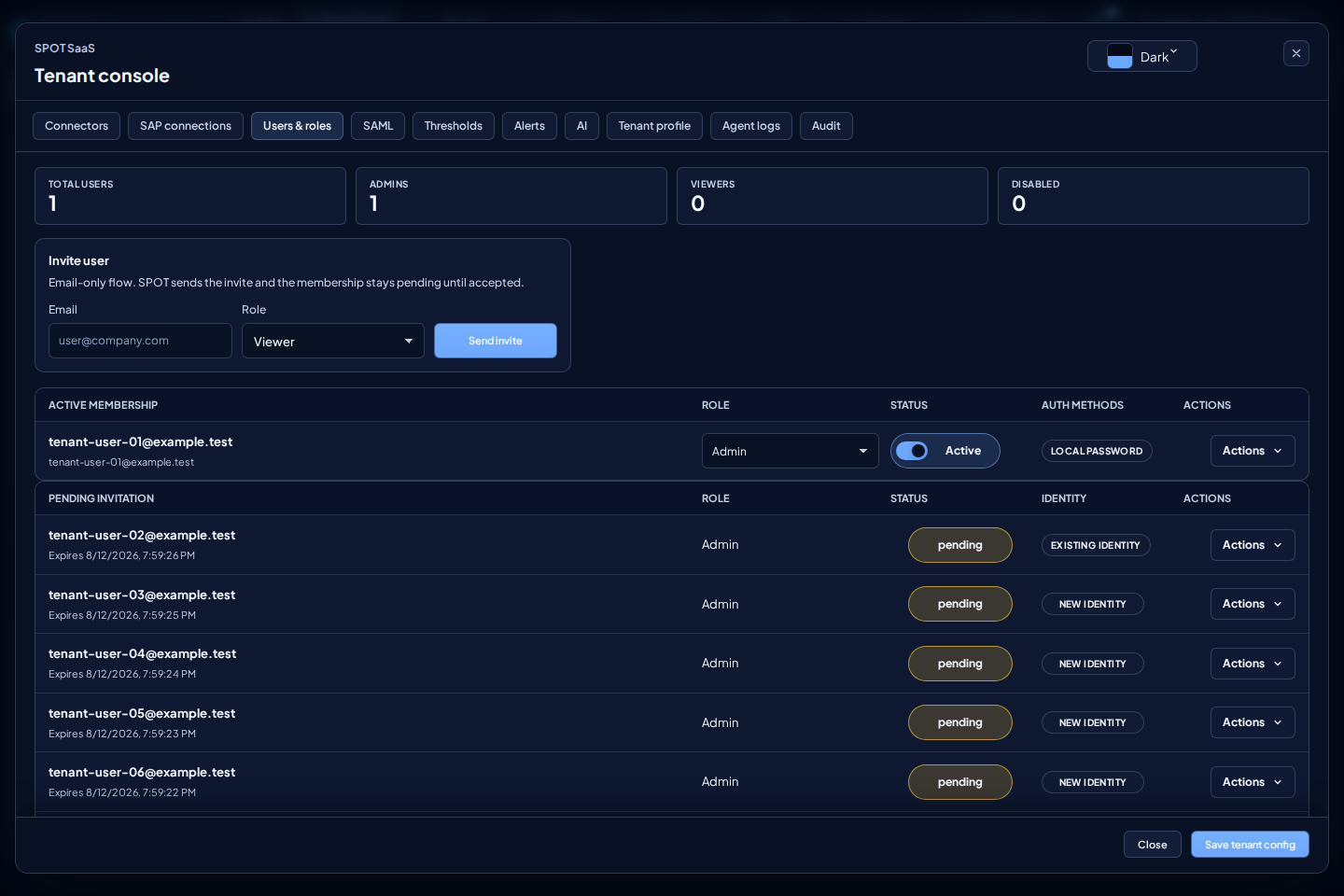
Use Users & roles to invite users by email, enable or disable memberships, and assign roles. The screen separates active access from pending invitations.
admin: can change tenant configuration.viewer: can inspect without changing configuration.
Invite user asks only for email and role. SPOT creates no account and grants no access until the recipient opens and accepts the link. An existing SPOT identity must prove that same identity with its password or its organization's SAML login; if another account is open, SPOT asks the user to switch accounts without consuming the link. A recipient without an authenticator creates the first password during acceptance. When acceptance completes, SPOT opens the tenant that sent the invitation directly, with no second login or workspace picker. A tenant administrator cannot create or reset the global credential from this screen.
The link is single-use and remains valid for 24 hours. If sign-in is required, the invitation remains pending in that browser tab. A link that is no longer valid or was already used grants no access; ask the administrator for a new invitation.
Check membership state before diagnosing an access issue. A disabled membership should not be treated as an authentication failure, and a viewer will not see administration actions even when they can open read-only screens.
Capacity warnings
SPOT shows a non-blocking global warning when known usage exceeds a service capacity threshold. The warning does not prevent navigation or normal work. When one or more sources do not yet have fresh data, SPOT reports partial or unknown coverage instead of treating missing data as zero usage.
A tenant administrator can open the details to review current usage, capacity,
and data freshness. A viewer receives only the general operational status and
warning. If the warning persists, first confirm that the SAP sources are
reporting recent data and contact your SPOT representative.
SAML
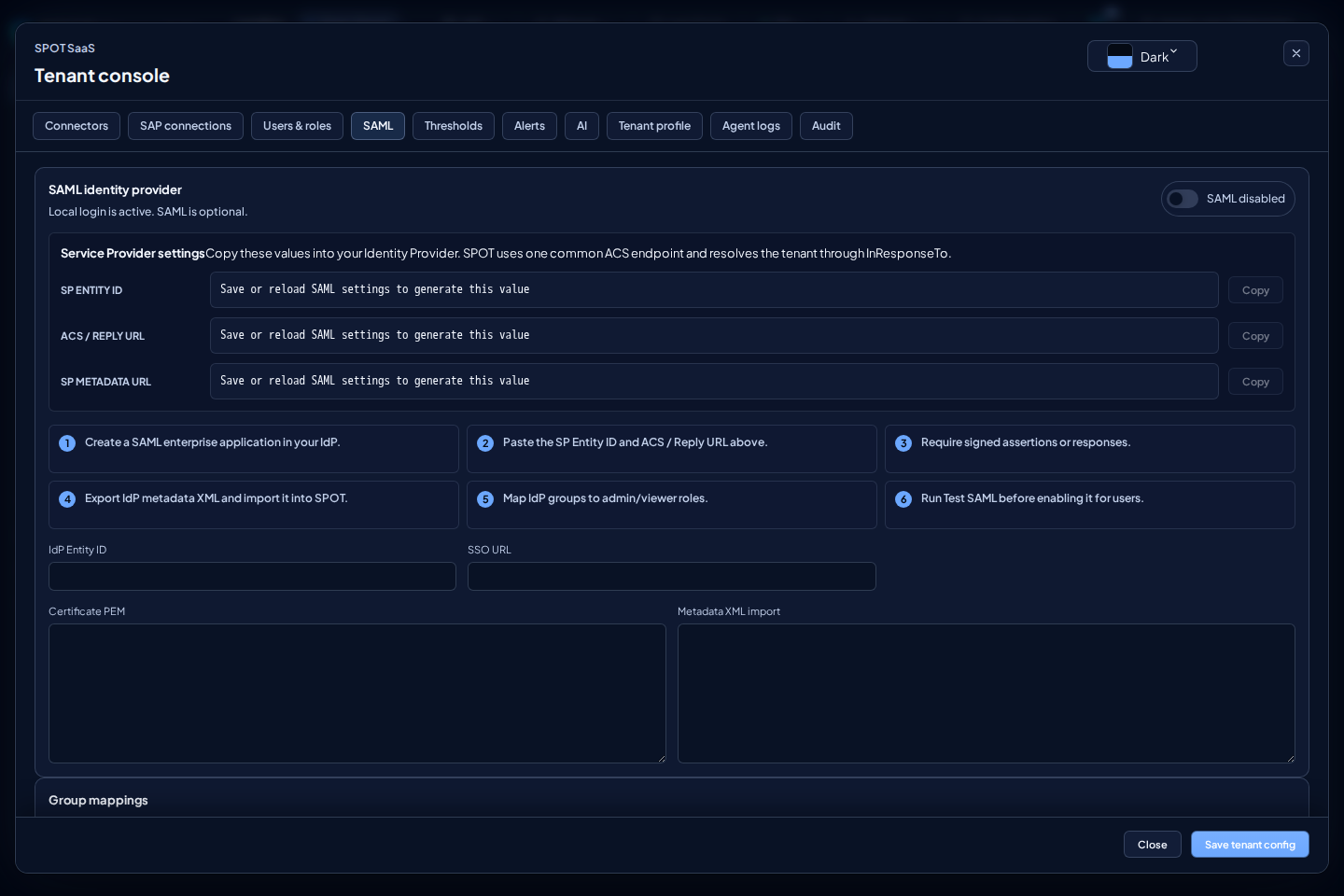
The SAML screen prepares identity-provider integration: Entity ID, SSO URL, certificate, and group mappings. Configuring the IdP does not enable corporate login by itself: Platform must first approve that tenant's verified primary domain as an identity authority. That tenant then becomes the home tenant for identities in the domain.
SPOT identifies a known SAML identity by the stable subject issued by the IdP, not by email alone. Group mappings assign roles only in the home tenant and never grant access to another tenant. If Platform revokes the authority, the associated SAML sessions become invalid.
Microsoft Entra: manual application roles
Use a dedicated SAML application. Copy SPOT Entity ID, ACS URL, and Metadata URL from SAML into Entra. Save the IdP Entity ID, SSO URL, and signing certificate in SPOT. Use a stable subject and emit the corporate email as email.
- Define application roles for users, such as
spot-adminandspot-viewer. - Open
Users and groupsin the enterprise application. Add the user, select the role, and confirm assignment. - Emit assigned role values in the SAML
groupsattribute. Mapspot-admintoadminandspot-viewertoviewerin SPOT. Check the exact attribute names and values before enabling SAML.
Microsoft documents role definition and user assignment. Keep an administrative recovery route before enabling the provider.
Browser sign-in and verification
Start at SPOT login: enter the corporate email and choose Continuar con SAML. After provider authentication, SPOT returns to login and completes the session. Choose a workspace if several tenants are available. A pending invitation in the same tab or an OAuth authorization continues after sign-in.
With an assigned test account, check the expected tenant, agreed role permissions, session persistence after reload, and a successful saml.acs in Audit. Repeat with an existing SPOT session to check identity replacement. This is the acceptance procedure; saved configuration or automated tests alone do not prove acceptance with the real IdP.
If completion times out or fails, return to login and start SAML again in the same tab. Allow site cookies and avoid copying the return address to another browser. Check assignment, role values, certificate, approved domain, and user and membership status. Do not share SAML responses, cookies, or credentials in screenshots or logs.
Thresholds
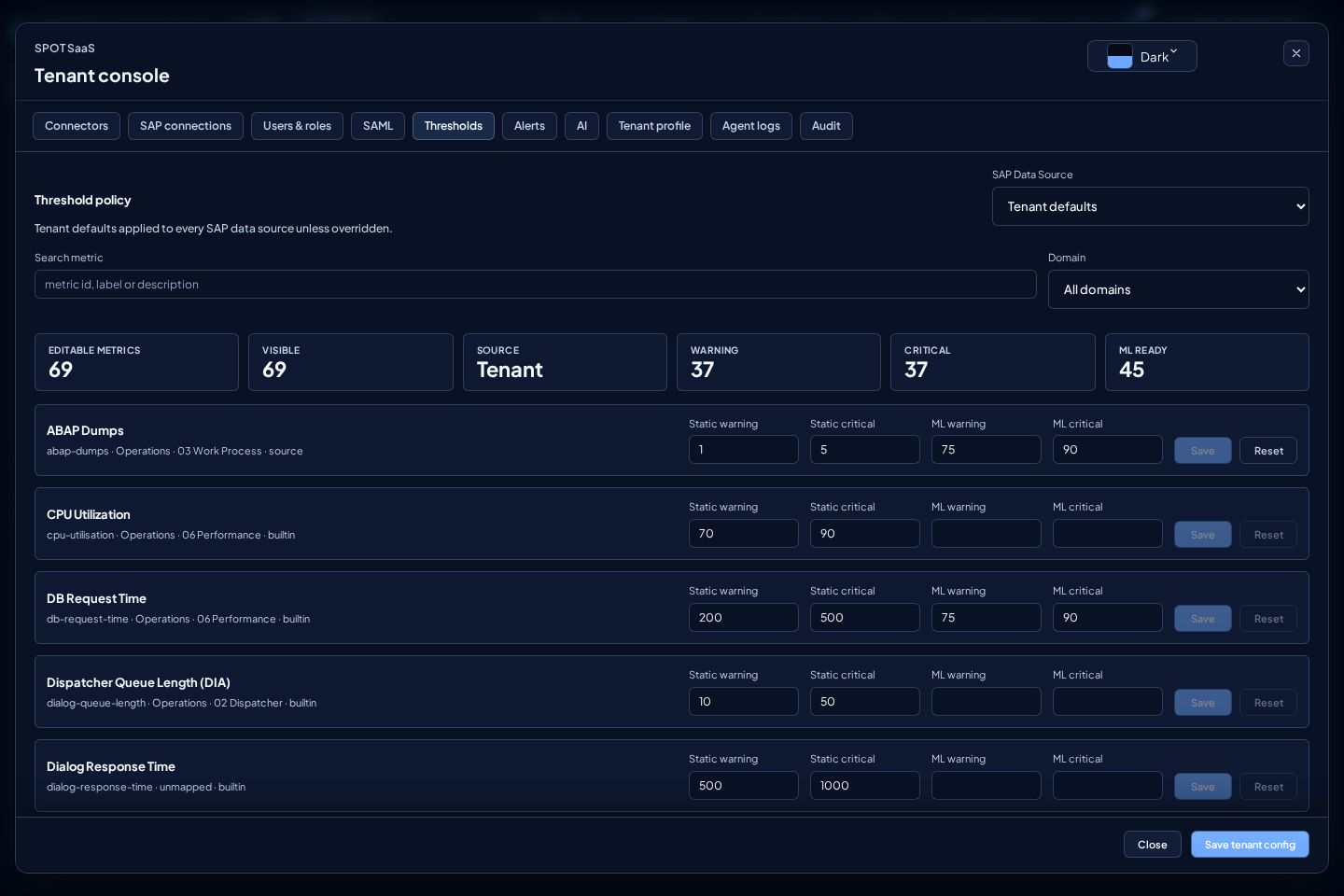
Thresholds lets you adjust metric thresholds by metric and source. Use search and domain filters to find the metric. Only change thresholds agreed with Basis or operations.
Each change affects how operational panels, AI reports, and health evidence interpret state. Before changing a threshold, identify the SAP source, domain, and exact metric. Then validate the same metric in Metrics to confirm the new limit does not turn normal noise into permanent WARN/KO.
In addition to Warning and Critical, a metric with ML policy alerting can
use ML warning and ML critical, defaulting to 75 and 90. They control chart
points and ML alert-rule conditions. Score combines calibrated rarity,
material impact, direction, and persistence.
Edits remain a local draft until you select Save on the row. SPOT validates all four values together and sends no changes while you type. For an SAP source, Reset removes that source override and restores the tenant's effective values.
SPOT enforces 0 ≤ ML warning < ML critical ≤ 100. On the default calibrated
scale, 75 represents a rare deviation and 90 a far more exceptional one,
provided the change is material and harmful. Validate the effect in
Metrics, coverage in
Machine Learning, and rules in
Alerts.
AI
AI configures providers for reports and chat. Validate each provider with Test before using it in operations.
Test makes a real call to the provider with the saved configuration or the visible draft in the screen. The result confirms connectivity, model, and latency without showing raw provider output or secrets.
For OpenAI, Anthropic, and Gemini, you can leave Base URL empty: SPOT uses the corresponding official HTTPS endpoint when testing, saving, and using the provider. For OpenAI-compatible or another custom provider, enter a valid public HTTPS Base URL. If Save tenant config rejects the configuration, check the provider type and URL first; private or insecure destinations are not accepted.
If you change type or base_url in a draft, enter a new API key before pressing Test. SPOT does not reuse the saved secret against a changed endpoint; it returns a clear error instead so credentials are not sent to an unvalidated destination.
The active provider is used for reports and chat over the selected SAP source. If multiple providers exist, keep only the operational default enabled and leave the rest disabled until connectivity, model, and permissions have been tested. If you configure a fallback chain (fallback_chain), SPOT will automatically try the next provider on transient errors (429, timeouts, server errors).
The AI Analytics panel in the /ai view lets you evaluate actual system usage: reports generated, chat sessions, average quality, failure rate, and user feedback.
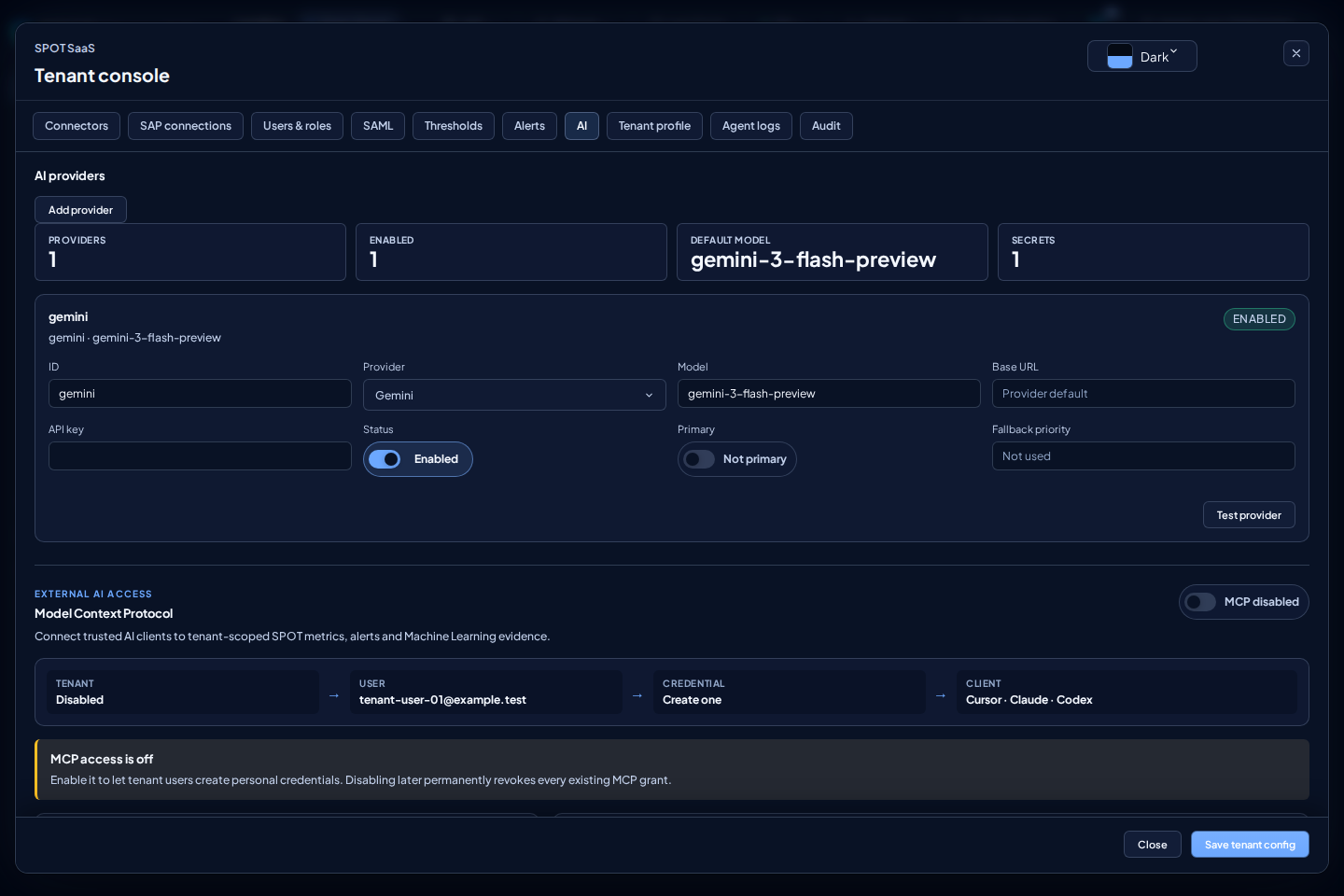
MCP access
MCP access, under AI, connects Cursor, Claude, or Codex to read-only tenant
data. An admin enables or disables MCP for the tenant. Both admin and
viewer users can create and revoke their own credentials; only an admin can
inspect and revoke another user's grants.
The section appears only when the SaaS deployment offers MCP. Its absence does not affect AI providers: it means the global capability is disabled and the console will not call MCP endpoints. Even when the section is available, MCP starts disabled for the tenant and requires an administrator's explicit opt-in.
OAuth is recommended. Add the MCP URL shown by SPOT to your client, sign in in
the browser, select the tenant, and approve the permissions. Use a personal
token only when the client cannot complete OAuth. SPOT shows that token once:
copy it to a secret manager or environment variable and never commit it or put
it in shared project configuration. Copy token uses the browser clipboard and
falls back to a same-page copy when that API is unavailable. If the browser
blocks both methods, select the value before closing the notice.
Choose expiry and allowed data when creating a token:
metrics:read: complete catalog and canonical metric queries.alerts:read: alert summary, history, and detail.ml:read: model status, expected range, forecast, and anomalies.
All three start selected. Remove permissions when the client needs only part of the data. The credential is bound to your user and tenant; it cannot select another tenant or submit arbitrary Elasticsearch queries.
The on-screen how-to provides copyable instructions for Cursor, Claude web,
Claude Code, and Codex. For Codex run codex mcp add spot --url <MCP URL> and
then codex mcp login spot. For Claude Code run
claude mcp add --transport http spot <MCP URL> and check the connection with
/mcp. Cursor and Claude web can add the same URL as a remote server or
connector and complete OAuth in the browser.
To validate the connection without broadening permissions:
- List the tools and confirm that only those allowed by the scopes appear.
- List sources and query one metric from an enabled source in the tenant.
- Revoke the credential and repeat the read: the client must request another
sign-in or return
401.
Never use a real token in screenshots, logs, or test reports.
Revoke a credential after a device is lost, its purpose changes, or it is no
longer needed. Disabling MCP for the tenant revokes every existing connection
and token; enabling it again requires new credentials. For 401, sign in again
or create a new token. For insufficient permissions, review scopes. An inactive
tenant or account blocks access immediately.
Audit
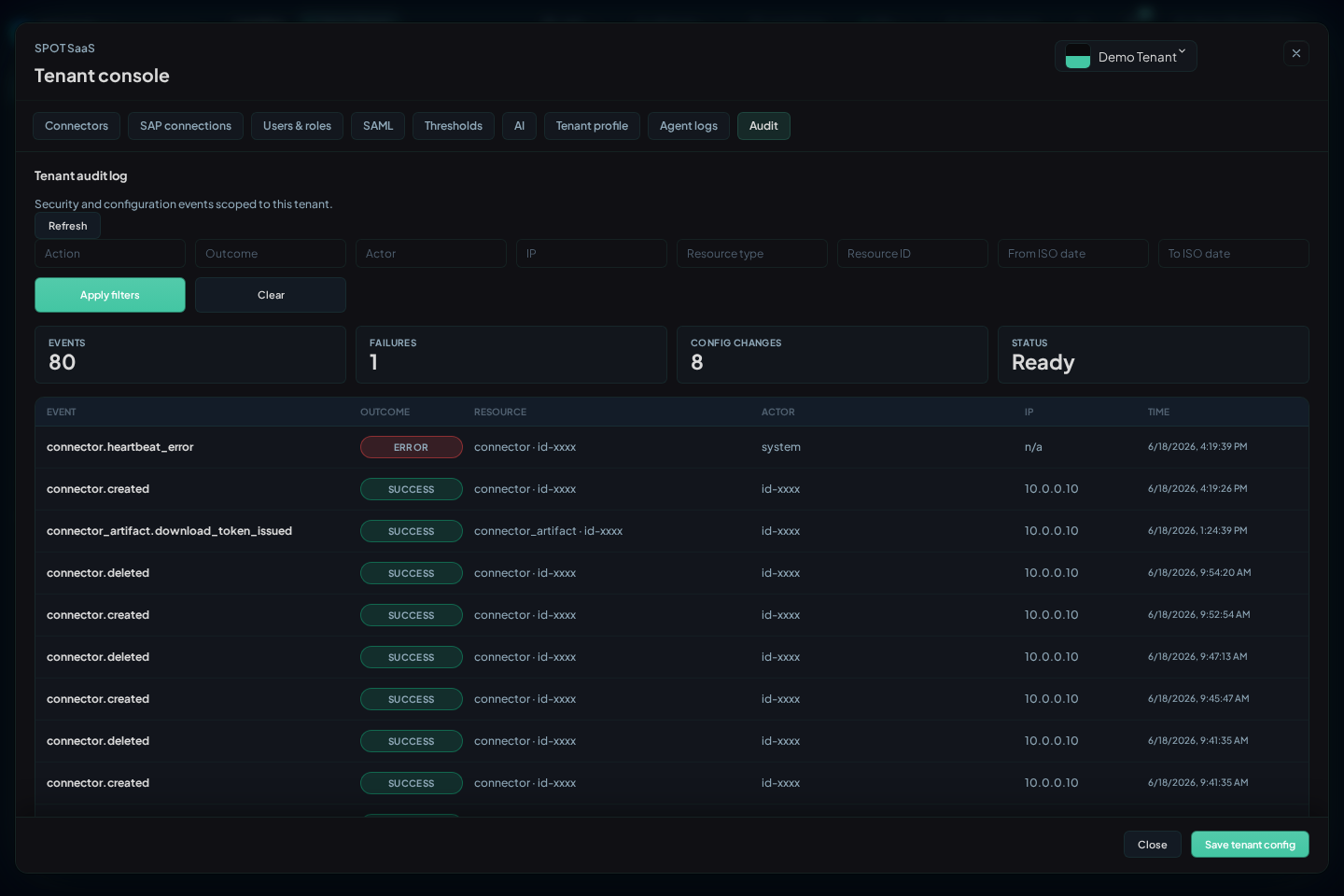
Audit shows tenant actions. Filter by action, outcome, actor, IP, resource type, resource ID, and time range.
Use Audit to confirm configuration changes, user lifecycle actions, connector actions, and integration tests. For access incidents, combine actor, outcome, and time range to separate credential errors, insufficient permissions, and recent administrative changes.