SaaS tenant
SPOT SaaS opens directly into your tenant. From there you can review health, open Daily Operations, inspect events, explore metrics, and enter Tenant console when your role allows it.
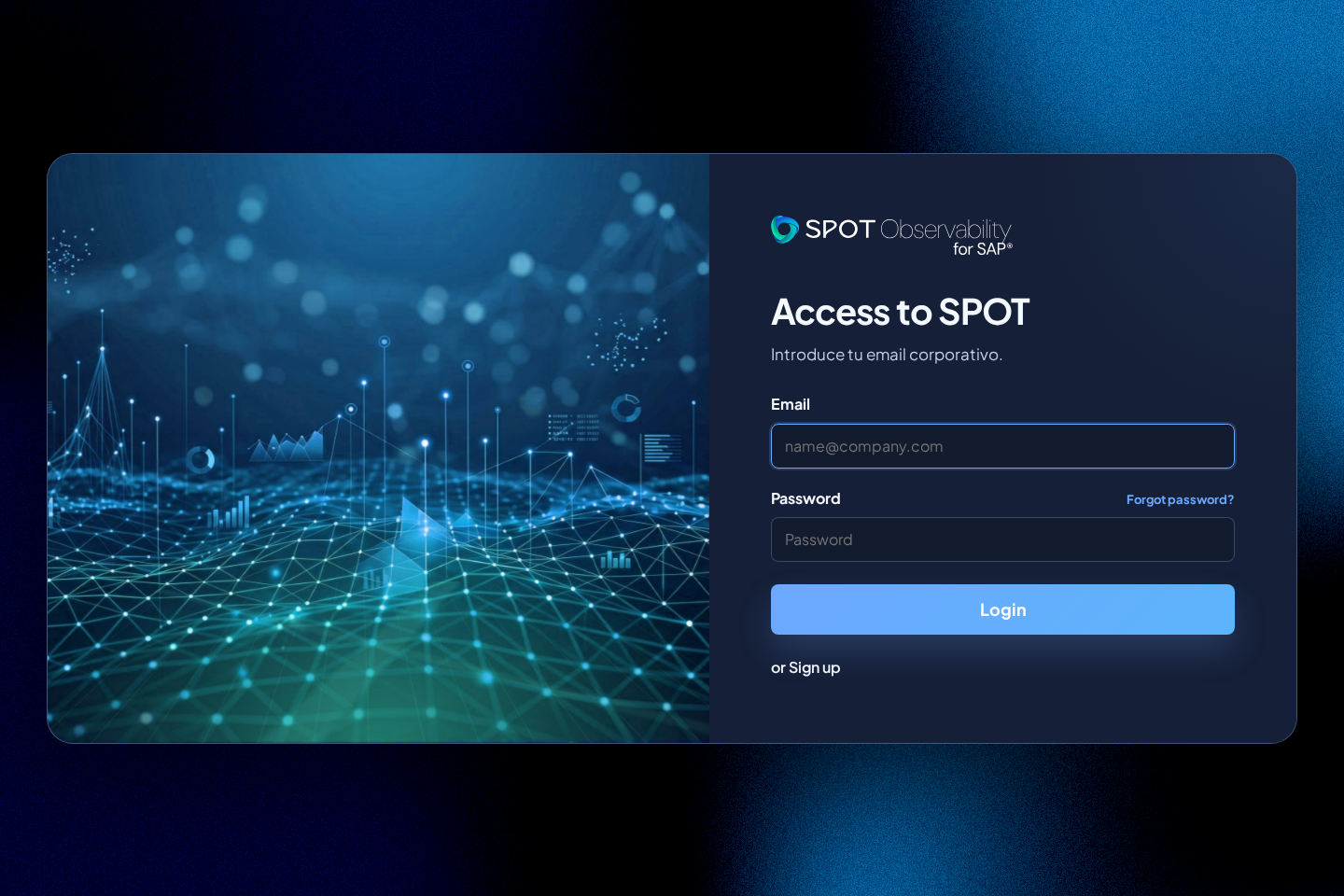
Create a tenant
On /login, use or Sign up to request a new tenant. Company name is the
tenant's visible label and does not need to match the person creating it. The
Corporate email domain does determine the tenant's corporate domain and its
initial technical identifier.
SPOT sends a verification email first. The tenant, its first administrator access, and the password are created only after that link is opened; when the flow finishes, sign in explicitly.
Daily entry
After access, Landing summarizes the health visible in your tenant. If no SAP source is selected, the top selector makes it clear so you can open Tenant console and review connectors or SAP connections.
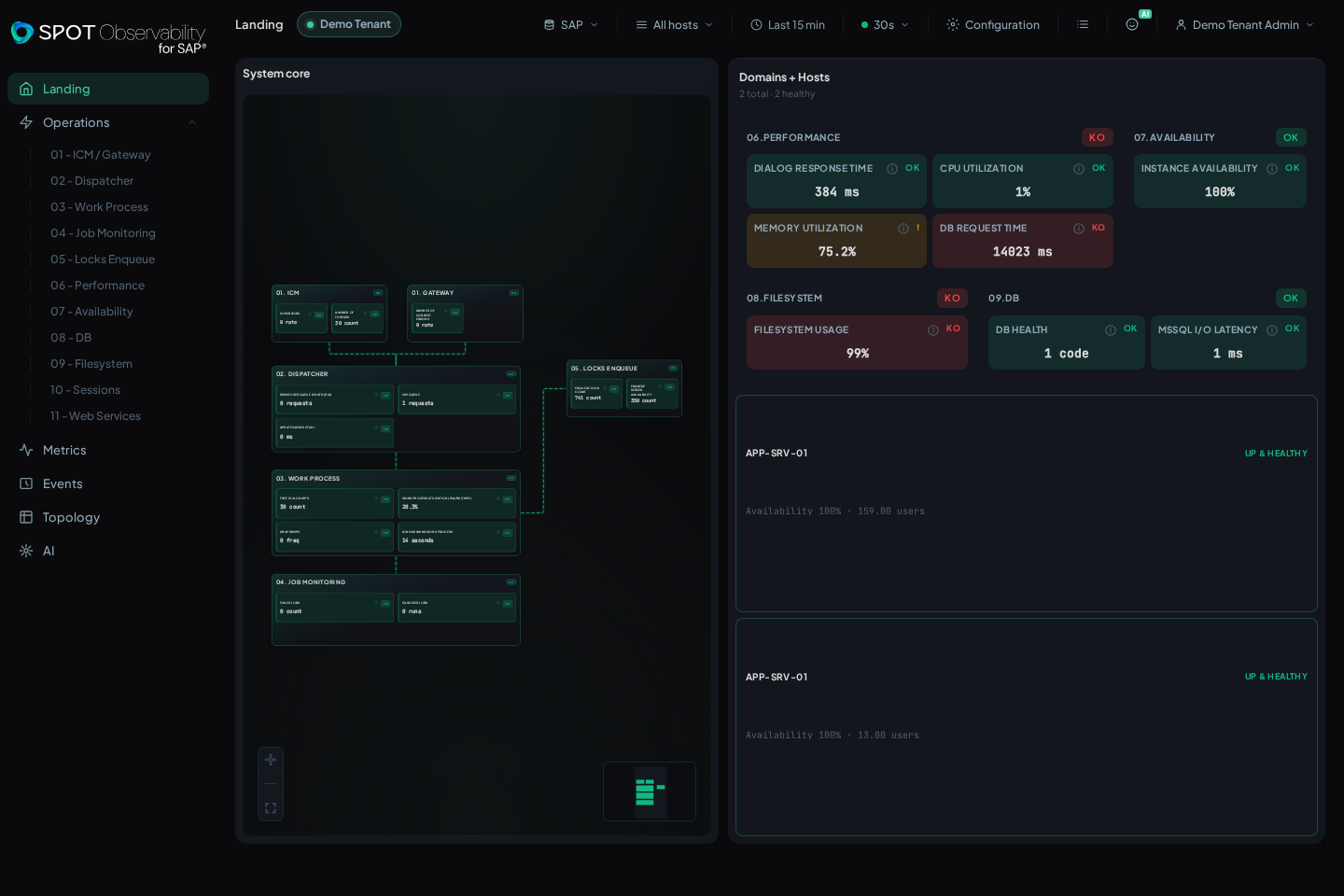
What you can do from SaaS
- Review Landing, Operations, Metrics, Events, the Landing map, and AI.
- Choose SAP source and time window from the top controls.
- Open Tenant console for connectors, SAP connections, users, SAML, thresholds, AI, and audit.
- Change theme or console density from the visible controls.
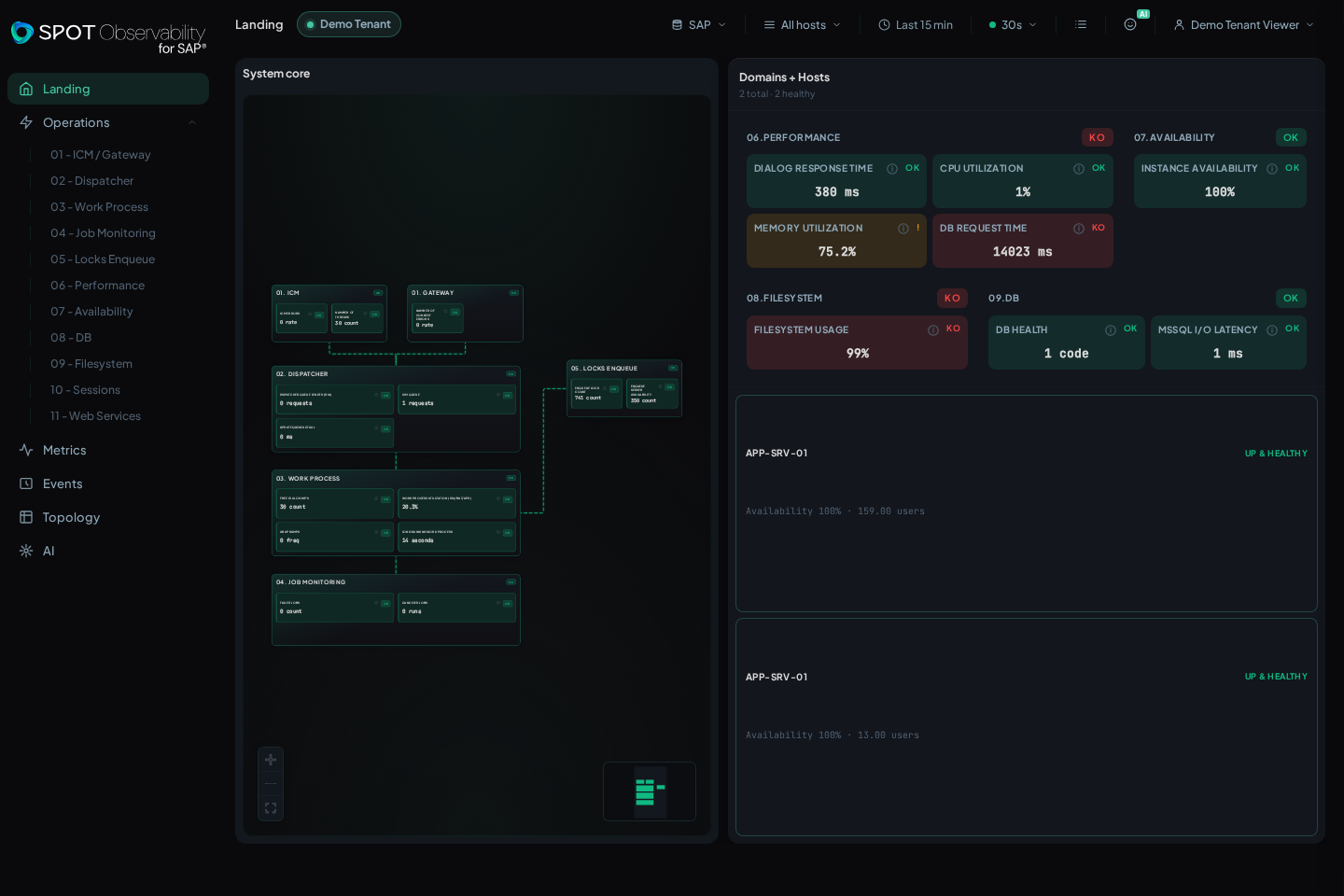
Viewer view
The viewer role keeps the experience focused on reading and diagnosis. Use it to review health and validate what a read-only user sees.
Email and invitations
Invitations and email notifications use the service's managed configuration. If a message does not arrive, check spam, the recipient and invitation or alert status before requesting another delivery. Give support the time and message type; do not send passwords, installation codes or invitation links. An email failure does not mean a connector has stopped collecting data.